Cross-Tool Automations
ActRun Team •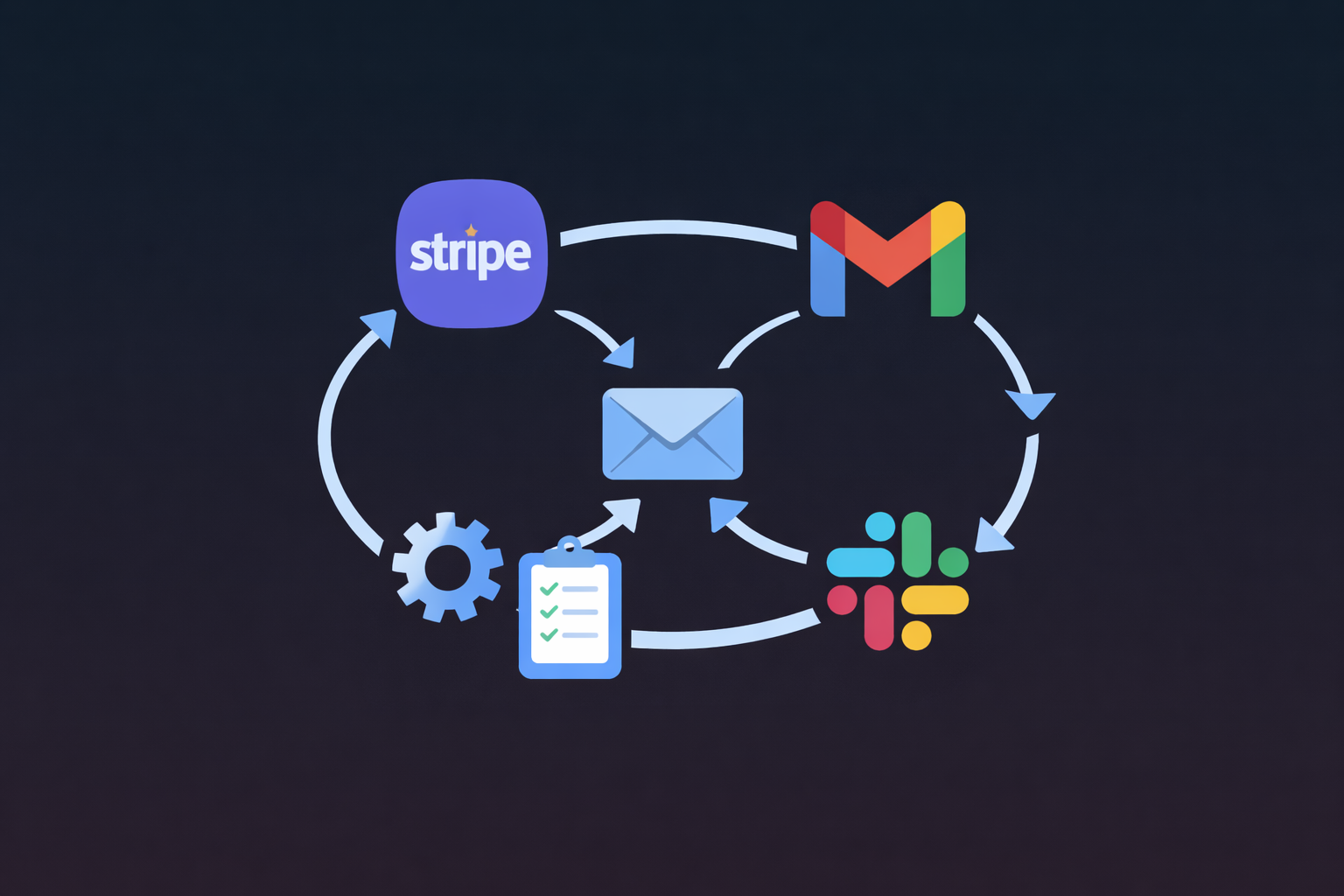
The real power of automation comes from connecting multiple tools together. With ActRun, you can create sophisticated workflows that span Email, Slack, Stripe, Web Search, and more—creating end-to-end automations that work seamlessly across your entire tech stack.
Why Cross-Tool Automations?
- End-to-End Workflows: Complete processes without manual handoffs
- Real-Time Sync: Keep all tools updated simultaneously
- Reduced Context Switching: Everything happens automatically
- Better Visibility: Information flows to where it's needed
- Scalability: Handle complex workflows effortlessly
How Cross-Tool Automations Work
ActRun acts as the central hub, connecting:
- Email: Monitor and extract information
- Slack: Send notifications and updates
- Stripe: Track payments and invoices
- Web Search: Research and gather information
- Sandbox: Create files and process data
Use Case 1: Lead-to-Customer Workflow
Complete automation from lead inquiry to customer onboarding.
Setup Steps
- Create an AI ActRun named "Lead-to-Customer Pipeline"
- Set up an automation job that runs every hour
- Use this prompt:
Monitor emails for new lead inquiries (keywords: "interested", "demo", "pricing", "quote", contact form submissions).

For each new lead:
1. Email Processing:
   - Extract: Name, Email, Company, Inquiry Type, Budget, Timeline
   - Categorize lead (hot/warm/cold)
   - Generate lead qualification score

2. Web Search:
   - Research company information (size, industry, recent news)
   - Find company website and social profiles
   - Check for existing relationship indicators

3. Slack Notification:
   - Send to #sales-leads channel
   - Include lead details and research findings
   - Tag appropriate team member
   - Format: "New Lead: [Company] - [Inquiry Type]"

4. CSV Export:
   - Save to leads-YYYY-MM.csv
   - Include all extracted data and research findings
   - Add qualification score and notes

5. Follow-up Automation:
   - Generate personalized response email
   - Include relevant information from research
   - Schedule follow-up sequence

6. Stripe Integration:
   - If lead converts to customer, track in Stripe
   - Monitor for payment confirmations
   - Update lead status in CSV

Complete workflow: Lead Email → Research → Slack Alert → CSV Export → Email Response → Stripe Tracking
Example Workflow Output
Slack Notification:
New Lead Alert

Lead: Mike Chen (mike@techstart.com)
Company: TechStart Inc
Inquiry: Enterprise Demo Request
Qualification Score: 85/100 (Hot Lead)

Research Findings:
- Company: 50-100 employees, SaaS industry
- Recent: Raised $5M Series A in Q4 2024
- Website: techstart.com
- Tech stack: Similar to our ideal customer profile

Details:
- Budget: Enterprise tier
- Timeline: This quarter
- Decision maker likely

Action: Assigned to Enterprise Sales Team

[View Full Details] | [Create CRM Entry] | [Schedule Demo]
CSV Export:
Date,Name,Email,Company,Inquiry Type,Budget,Timeline,Qualification Score,Research Notes,Status
2025-03-10,Mike Chen,mike@techstart.com,TechStart Inc,Enterprise Demo,Enterprise,This Quarter,85,Series A funding,Hot Lead
Use Case 2: Invoice-to-Payment Workflow
Complete automation from invoice creation to payment tracking and team notification.

Setup Steps
- Create an AI ActRun named "Invoice Payment Workflow"
- Set up an automation job that runs every 30 minutes
- Use this prompt:
Monitor emails for Stripe invoice and payment notifications.

For each invoice/payment event:

1. Email Processing:
   - Detect invoice sent, payment received, or payment failed
   - Extract: Invoice number, Customer, Amount, Due date, Status

2. Stripe Tracking:
   - Update payment status
   - Track in payment database
   - Calculate days until due or days overdue

3. Slack Notifications:
   - Payment received: Send to #payments channel
     Format: "Payment: $[amount] from [customer] - Invoice #[number]"
   - Payment failed: Send to #finance-urgent channel
     Format: "Payment Failed: [customer] - Invoice #[number] - Action Required"
   - Invoice overdue: Send to #finance channel
     Format: "Overdue: Invoice #[number] - [customer] - [days] days overdue"

4. CSV Export:
   - Update payments-YYYY-MM.csv
   - Track payment history
   - Include status and dates

5. Follow-up Automation:
   - If payment failed: Generate follow-up email to customer
   - If overdue: Generate reminder email sequence
   - If paid: Generate thank you email

6. Web Search (if needed):
   - Research customer if payment issues persist
   - Check for company news or financial issues

Complete workflow: Stripe Email → Status Update → Slack Alert → CSV Export → Follow-up Email
Use Case 3: Customer Support Workflow
End-to-end support ticket management across multiple tools.
Setup Steps
- Create an AI ActRun named "Support Workflow Manager"
- Set up an automation job that runs every 15 minutes
- Use this prompt:
Monitor emails for customer support inquiries (keywords: "support", "help", "issue", "problem", "bug", emails from support@ or help@).

For each support email:

1. Email Processing:
   - Extract: Customer name, Email, Issue description, Priority, Category
   - Classify issue type (technical, billing, feature request, bug)
   - Determine urgency (critical/high/medium/low)

2. Web Search:
   - Search for similar issues in knowledge base
   - Research solutions or workarounds
   - Find relevant documentation

3. Slack Notification:
   - Critical/High: Send to #support-urgent with @here
   - Medium/Low: Send to #support-tickets
   - Include: Customer, Issue summary, Priority, Suggested solution

4. CSV Tracking:
   - Save to support-tickets-YYYY-MM.csv
   - Track: Ticket number, Customer, Issue, Status, Assigned to, Resolution time

5. Response Generation:
   - Generate response email with solution
   - Include relevant documentation links
   - Personalize based on issue type

6. Follow-up Automation:
   - Day 2: Check if issue resolved
   - Day 5: Offer additional help
   - Day 10: Close ticket if resolved

7. Stripe Integration (if billing issue):
   - Check customer payment history
   - Verify account status
   - Include billing information in response

Complete workflow: Support Email → Research → Slack Alert → CSV Track → Email Response → Follow-up
Example Workflow Output
Slack Notification:
New Support Ticket

Customer: Sarah Johnson (sarah@customer.com)
Issue: Unable to access account after password reset
Priority: High
Category: Technical

Research Findings:
- Similar issue reported 3 times this month
- Solution: Clear browser cache and try again
- Documentation: [Knowledge Base Article #123]

Suggested Response:
1. Clear browser cache
2. Try incognito mode
3. Contact support if issue persists

Action: Assigned to Technical Support Team

[View Full Ticket] | [Generate Response] | [Assign to Team]
Use Case 4: Research and Reporting Workflow
Automated research, analysis, and reporting across tools.
Setup Steps
- Create an AI ActRun named "Research Reporter"
- Set up an automation job that runs daily at 8 AM
- Use this prompt:
Analyze emails from the past 24 hours and create comprehensive research report.

1. Email Analysis: Identify research topics, industry news, competitor mentions
2. Web Search: Research each topic, find relevant articles and data
3. Data Compilation: Combine email insights with web research, identify trends
4. File Creation: Create CSV (research-data-YYYY-MM-DD.csv) and formatted report
5. Slack Notification: Send summary to #research channel with top findings
6. Email Summary: Generate email summary for team with report attachments

Complete workflow: Email Analysis → Web Research → Data Compilation → File Export → Slack Alert → Email Summary
Best Practices for Cross-Tool Automation
1. Start Simple
- Begin with 2-3 tools
- Master one workflow before adding complexity
- Test thoroughly before scaling
2. Error Handling
- Include fallbacks for each step
- Handle missing data gracefully
- Log errors for debugging
3. Data Consistency
- Use consistent naming conventions
- Standardize date formats
- Maintain data integrity across tools
4. Security and Privacy
- Be careful with sensitive data
- Follow platform guidelines
- Respect user privacy
5. Monitoring and Optimization
- Track workflow success rates
- Monitor for errors
- Optimize based on results
Integration Patterns
Pattern 1: Email → Research → Notification
Email triggers research, results sent to Slack
Pattern 2: Email → Process → Export → Notify
Email processed, exported to CSV, team notified
Pattern 3: Event → Research → Content → Distribute
Event triggers research, content created, distributed across channels
Pattern 4: Payment → Track → Alert → Follow-up
Payment triggers tracking, alerts sent, follow-ups generated
Troubleshooting
Workflow Not Completing
- Check each step: Verify each tool integration works
- Review logs: Check automation execution history
- Test individually: Test each component separately
Data Sync Issues
- Verify formats: Ensure data formats match between tools
- Check timestamps: Use consistent date/time formats
- Validate data: Check for missing or invalid data
Notification Overload
- Filter appropriately: Only send important notifications
- Use digests: Combine multiple updates into one
- Respect channels: Use appropriate Slack channels
Conclusion
Cross-tool automations unlock the full potential of ActRun by connecting your entire tech stack. By creating workflows that span Email, Slack, Stripe, Web Search, and file creation, you can build sophisticated automations that handle complex processes end-to-end.
Start with simple two-tool integrations, master the patterns, and gradually build comprehensive workflows. Your tools work together seamlessly, and your processes become fully automated.
Ready to get started? Create your first multi-tool ActRun today and experience the power of cross-platform automation.
Want to learn more? Check out our individual guides on Slack automation, Stripe tracking, and research workflows.